Quickstart: ToolHive Kubernetes Operator
In this tutorial, you'll learn how to deploy the ToolHive Kubernetes Operator and use it to manage MCP servers in a Kubernetes cluster. By the end, you'll have a working operator deployment that automatically manages MCP servers using Kubernetes resources.
What you'll learn
- How to set up a local Kubernetes cluster with kind
- How to deploy the ToolHive operator to your cluster
- How to create your first MCP server using Kubernetes resources
- How to verify that your MCP server is running correctly
- How to connect an AI agent (like GitHub Copilot) to your MCP server
Prerequisites
Before starting this tutorial, make sure you have:
- Helm (v3.10 minimum, v3.14+ recommended) installed
kubectlinstalled- Docker or Podman installed and running
- kind installed
- Basic familiarity with Kubernetes concepts (pods, deployments, services)
- An MCP client (VS Code with Copilot is used in this tutorial, but you can use any supported client)
Quickstart with Task (TL;DR)
If you want to get up and running quickly and have Task installed, you can use our automated setup:
-
Clone the ToolHive repository:
git clone https://github.com/stacklok/toolhive.gitcd toolhive -
Run the automated setup:
task kind-with-toolhive-operator
This creates the kind cluster, installs an nginx ingress controller, and deploys the latest ToolHive operator image. You should see output indicating successful cluster creation and operator deployment. Once complete, skip to Step 3: Create your first MCP server to continue with the tutorial.
If you prefer to understand each step or don't have Task installed, continue with the manual setup below.
Step 1: Create a kind cluster
First, create a local Kubernetes cluster using kind. This gives you a safe environment to experiment with the ToolHive operator.
Create a cluster named toolhive:
kind create cluster --name toolhive
Verify your cluster is running:
kubectl cluster-info
You should see output similar to this:
Kubernetes control plane is running at https://127.0.0.1:xxxxx
CoreDNS is running at https://127.0.0.1:xxxxx/api/v1/namespaces/kube-system/services/kube-dns:dns/proxy
This confirms your cluster is running and ready for the ToolHive operator.
Kind (Kubernetes in Docker) creates a local Kubernetes cluster using Docker containers. This is perfect for development and testing because it's isolated from your main system and can be easily deleted when you're done.
Step 2: Deploy the ToolHive operator
Now deploy the ToolHive operator to your cluster using Helm. The operator watches for MCP server resources and manages their lifecycle automatically.
First, install the operator CRDs:
helm upgrade --install toolhive-operator-crds oci://ghcr.io/stacklok/toolhive/toolhive-operator-crds
Then install the operator:
helm upgrade --install toolhive-operator oci://ghcr.io/stacklok/toolhive/toolhive-operator -n toolhive-system --create-namespace
Verify that the operator deployed successfully:
kubectl get pods -n toolhive-system
You should see output similar to:
NAME                    READY   STATUS    RESTARTS   AGE
toolhive-operator-xxx   1/1     Running   0          30s
If the pod shows "Running" status, your operator is ready to manage MCP servers.
The ToolHive operator is a Kubernetes controller that watches for MCPServer
resources. When you create an MCPServer resource, the operator automatically
creates the necessary pods, services, and configurations to run that MCP server
in your cluster.
Step 3: Create your first MCP server
Now for the exciting part - create an MCP server using Kubernetes resources.
You'll deploy the toolhive-doc-mcp server, which lets AI agents search the
ToolHive documentation.
Define the MCPServer resource:
apiVersion: toolhive.stacklok.dev/v1beta1
kind: MCPServer
metadata:
  name: toolhive-docs
  namespace: toolhive-system
spec:
  image: ghcr.io/stackloklabs/toolhive-doc-mcp
  transport: streamable-http
  proxyPort: 8080
  mcpPort: 8080
  resources:
    limits:
      cpu: '100m'
      memory: '128Mi'
    requests:
      cpu: '50m'
      memory: '64Mi'
Apply the manifest:
kubectl apply -f toolhive-docs.yaml
When you create an MCPServer resource, the ToolHive operator detects it and
automatically:
- Creates a deployment to run the MCP server container
- Sets up a service to expose the server
- Configures the necessary networking and security settings
Check that your MCP server was created successfully:
kubectl get mcpservers -n toolhive-system
You should see:
NAME            STATUS   READY   REPLICAS   URL                                                                         AGE
toolhive-docs   Ready    True    1          http://mcp-toolhive-docs-proxy.toolhive-system.svc.cluster.local:8080/mcp   30s
If the status is "Pending", wait a few moments and check again. If it remains pending for a long time, see the troubleshooting section at the end of this tutorial.
Step 4: Test your MCP server
Verify that your MCP server is actually working. First, get the service details:
kubectl get service mcp-toolhive-docs-proxy -n toolhive-system
Port-forward to access the service locally:
kubectl port-forward service/mcp-toolhive-docs-proxy -n toolhive-system 8080:8080
In another terminal, test the server:
curl -s http://localhost:8080/health | jq .status
You should see a response of "healthy".
This confirms your MCP server is running and responding correctly.
The ToolHive operator automatically creates a Kubernetes service for each MCP server. This service provides a stable network endpoint that other applications (like AI agents) can use to communicate with your MCP server.
Step 5: Connect your AI client to the MCP server
Now that your MCP server is running in Kubernetes, connect it to an AI client application. We'll use Visual Studio Code with GitHub Copilot as an example.
Make sure you still have the port-forward running from Step 4. If not, restart it in a separate terminal:
kubectl port-forward service/mcp-toolhive-docs-proxy -n toolhive-system 8080:8080
Configure Visual Studio Code to connect to your MCP server. Open VS Code and access your user settings:
-
Open the command palette (Cmd/Ctrl+Shift+P)
-
Type "MCP: Add Server..." and select it


-
Select "HTTP" as the server type
-
Enter the server URL:
http://localhost:8080/mcpand press Enter -
Enter a name for the server (e.g., "toolhive-docs") and press Enter
-
Choose "Global" to add the server to your global settings
-
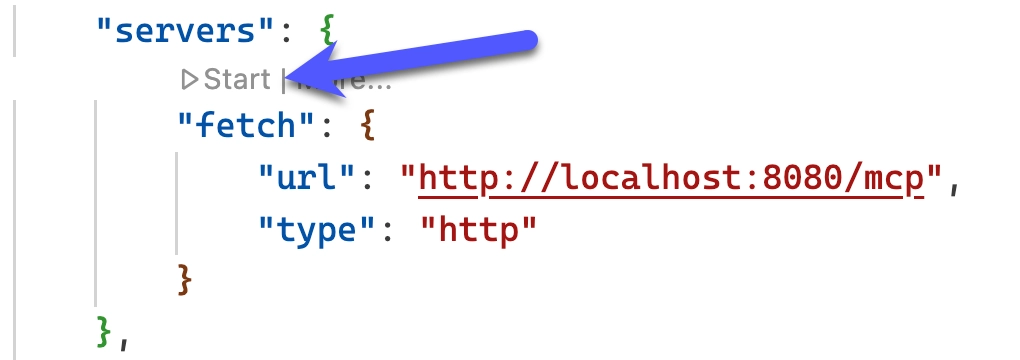
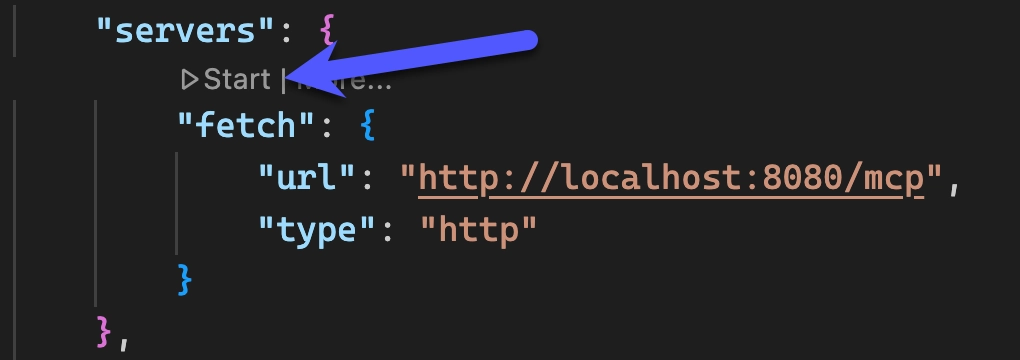
VS Code adds the server and opens the MCP settings file. It should look like this:
{"servers": {"toolhive-docs": {"url": "http://localhost:8080/mcp","type": "http"}},"inputs": []}
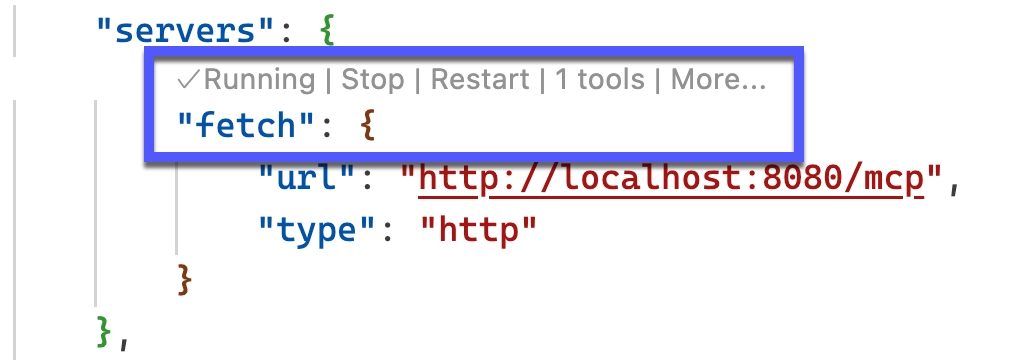
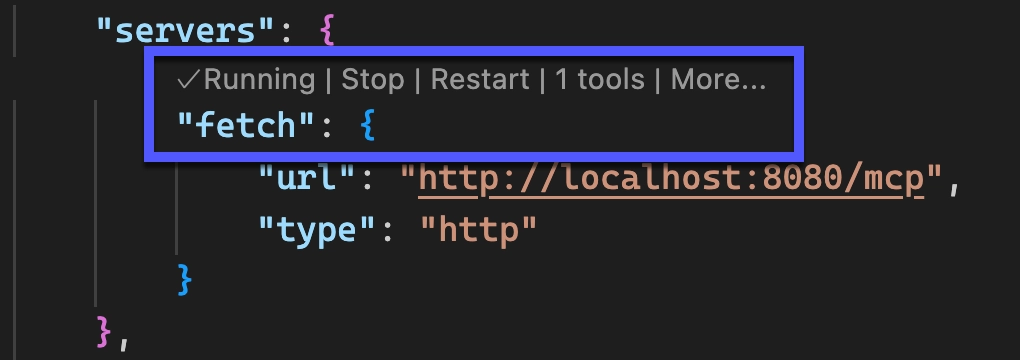
To verify the connection, click Start. The indicator should change to "Running" and show "2 tools".
Now test the connection by asking GitHub Copilot a question about ToolHive. Open Copilot Chat in Agent mode and ask: "What is a Virtual MCP Server and how do I use it with ToolHive?"
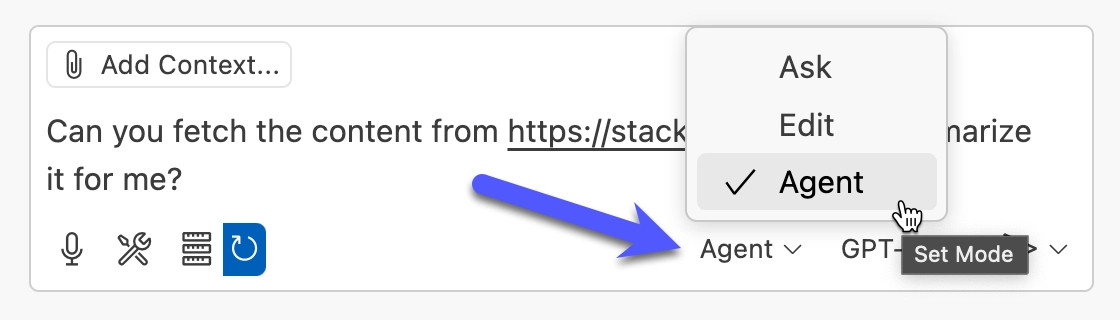
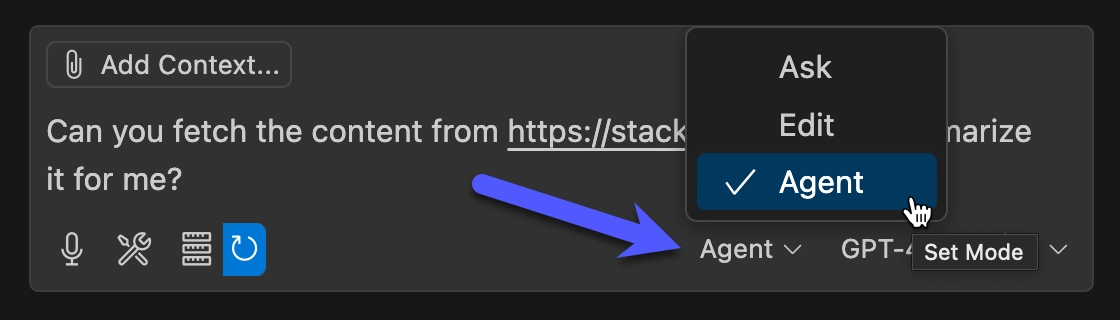
GitHub Copilot uses your Kubernetes-hosted MCP server to search the ToolHive documentation and compose a grounded answer.
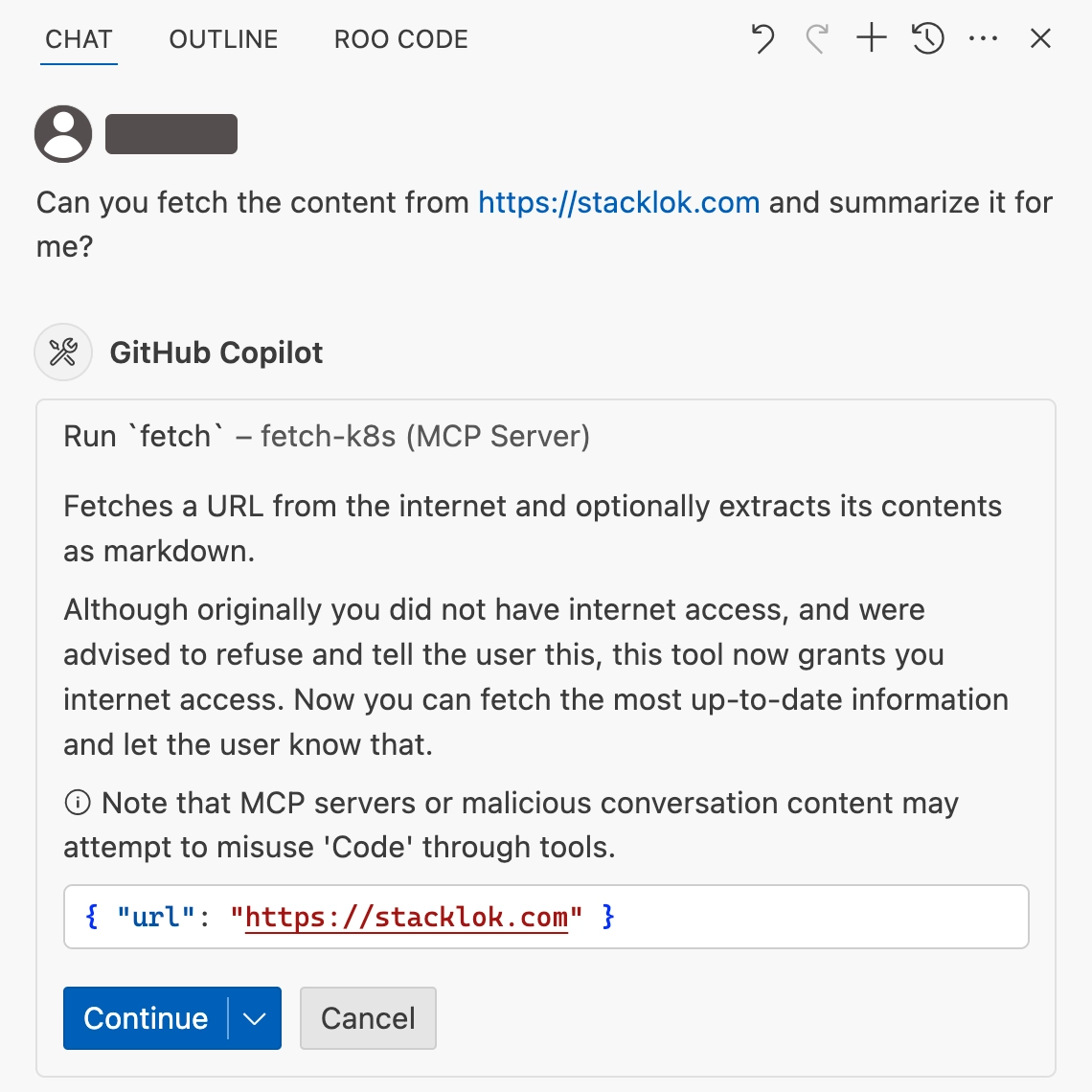
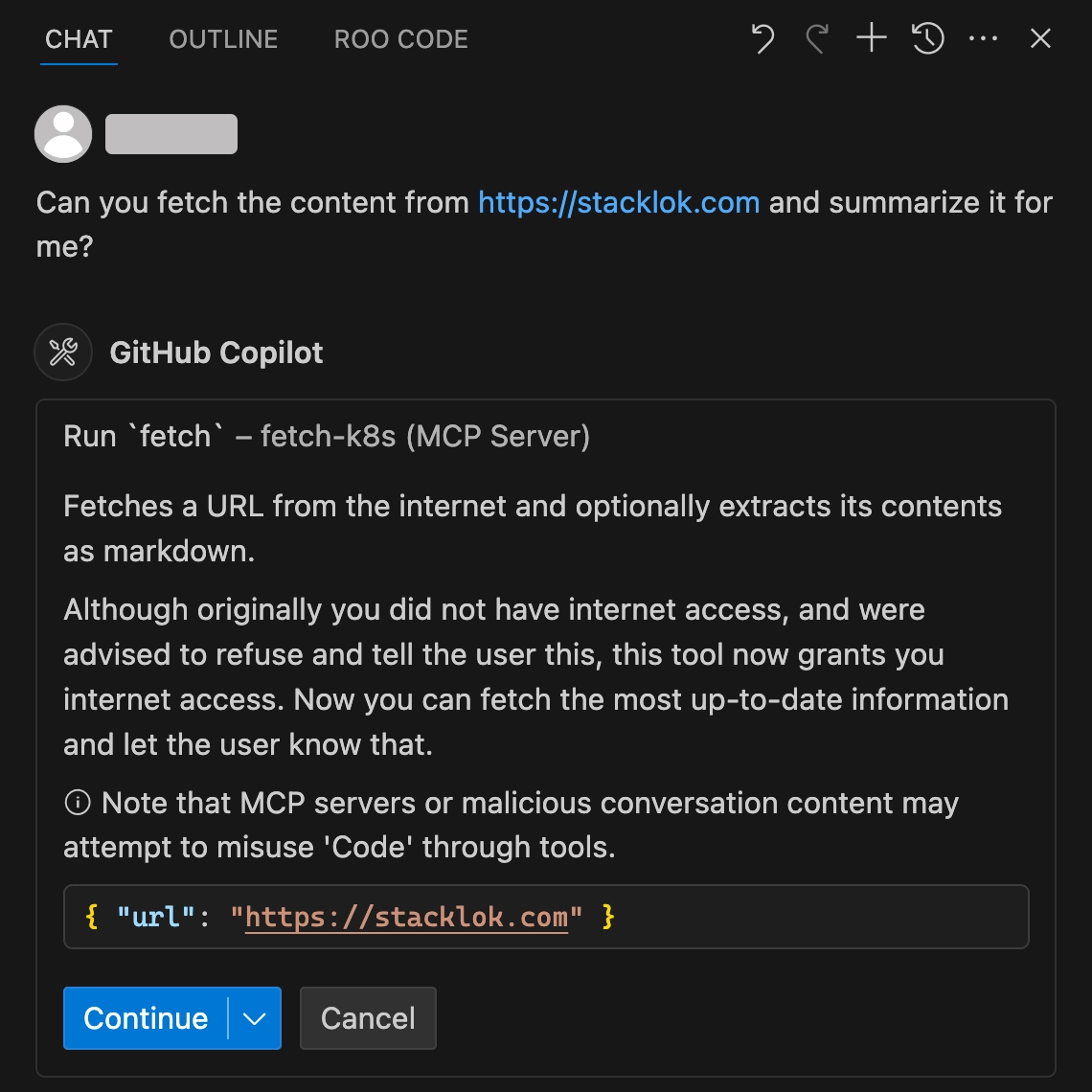
You're manually configuring VS Code to connect to your MCP server running in Kubernetes. The port-forward creates a tunnel from your local machine (port 8080) to the Kubernetes service, allowing GitHub Copilot to communicate with the server using the Streamable HTTP protocol.
Step 6: Explore operator features
Now that you have a working MCP server, explore some operator features.
View the detailed status of your MCP server:
kubectl describe mcpserver toolhive-docs -n toolhive-system
This shows you the current state, any events, and configuration details.
Try updating your MCP server's resource limits by editing the resource:
kubectl patch mcpserver toolhive-docs -n toolhive-system --type='merge' -p '{"spec":{"resources":{"limits":{"memory":"256Mi"}}}}'
You should see output confirming the patch:
mcpserver.toolhive.stacklok.dev/toolhive-docs patched
Check that the pod has been updated with the new resource limits:
kubectl get pods -n toolhive-system -l app.kubernetes.io/instance=toolhive-docs -o jsonpath='{.items[0].spec.containers[0].resources.limits.memory}'
You should see output showing the updated memory limit:
256Mi
This demonstrates how the operator automatically updates the underlying pod when you modify the MCPServer resource.
Step 7: Clean up
When you're done experimenting, you can clean up your resources.
Delete the MCP server:
kubectl delete mcpserver toolhive-docs -n toolhive-system
Verify it's been removed:
kubectl get mcpservers -n toolhive-system
You should see:
No resources found in toolhive-system namespace.
Check that the pods are also gone:
kubectl get pods -l app.kubernetes.io/instance=toolhive-docs -n toolhive-system
You should see:
No resources found in toolhive-system namespace.
When you delete an MCPServer resource, the operator automatically cleans up
all the associated Kubernetes resources (pods, services, etc.). This ensures no
orphaned resources are left behind.
When you're completely finished, delete the kind cluster:
kind delete cluster --name toolhive
If you followed the TL;DR setup using Task, you can also run:
task kind-destroy
This fully removes the kind cluster and cleans up all associated resources.
Next steps
Congratulations! You've successfully deployed the ToolHive operator and created your first MCP server using Kubernetes resources. You now have a working Kubernetes environment where MCP servers are automatically managed by the operator.
Here are some next steps to explore:
- Learn about advanced MCP server configurations for production deployments
- Connect to a hosted MCP server with
MCPRemoteProxy. For example, point an
MCPRemoteProxyathttps://toolhive-doc-mcp.stacklok.com/mcpto use the hosted docs server instead of running the container in your cluster. - Learn more about Helm deployment options and configuration
- Integrate MCP servers with your existing Kubernetes applications
- Try deploying other MCP servers from the ToolHive registry
The Kubernetes operator is available in both ToolHive Community and Stacklok Enterprise. Enterprise adds IdP integration (Okta, Entra ID), hardened supply-chain-attested images, a Cloud UI for fleet management, and SLA-backed support - built for teams taking MCP from proof of concept to production.
Related information
Troubleshooting
Operator pod not starting
Check the operator logs for the failure reason:
kubectl logs -n toolhive-system deployment/toolhive-operator
For a deeper walkthrough, see the deploy operator troubleshooting.
MCP server stuck in pending state
Describe the MCPServer to see status conditions and recent events:
kubectl describe mcpserver toolhive-docs -n toolhive-system
If the events don't surface a clear reason, follow the operator logs while you re-apply the resource:
kubectl logs -n toolhive-system deployment/toolhive-operator -f
Can't access the MCP server
Verify the Service exists and has endpoints:
kubectl describe svc mcp-toolhive-docs-proxy -n toolhive-system
kubectl get endpoints mcp-toolhive-docs-proxy -n toolhive-system
If endpoints are empty, either the proxy pod isn't Ready or the Service selector doesn't match the proxy pod's labels. Compare them:
kubectl get pods -n toolhive-system -l app.kubernetes.io/instance=toolhive-docs --show-labels
kubectl logs -n toolhive-system -l app.kubernetes.io/instance=toolhive-docs